
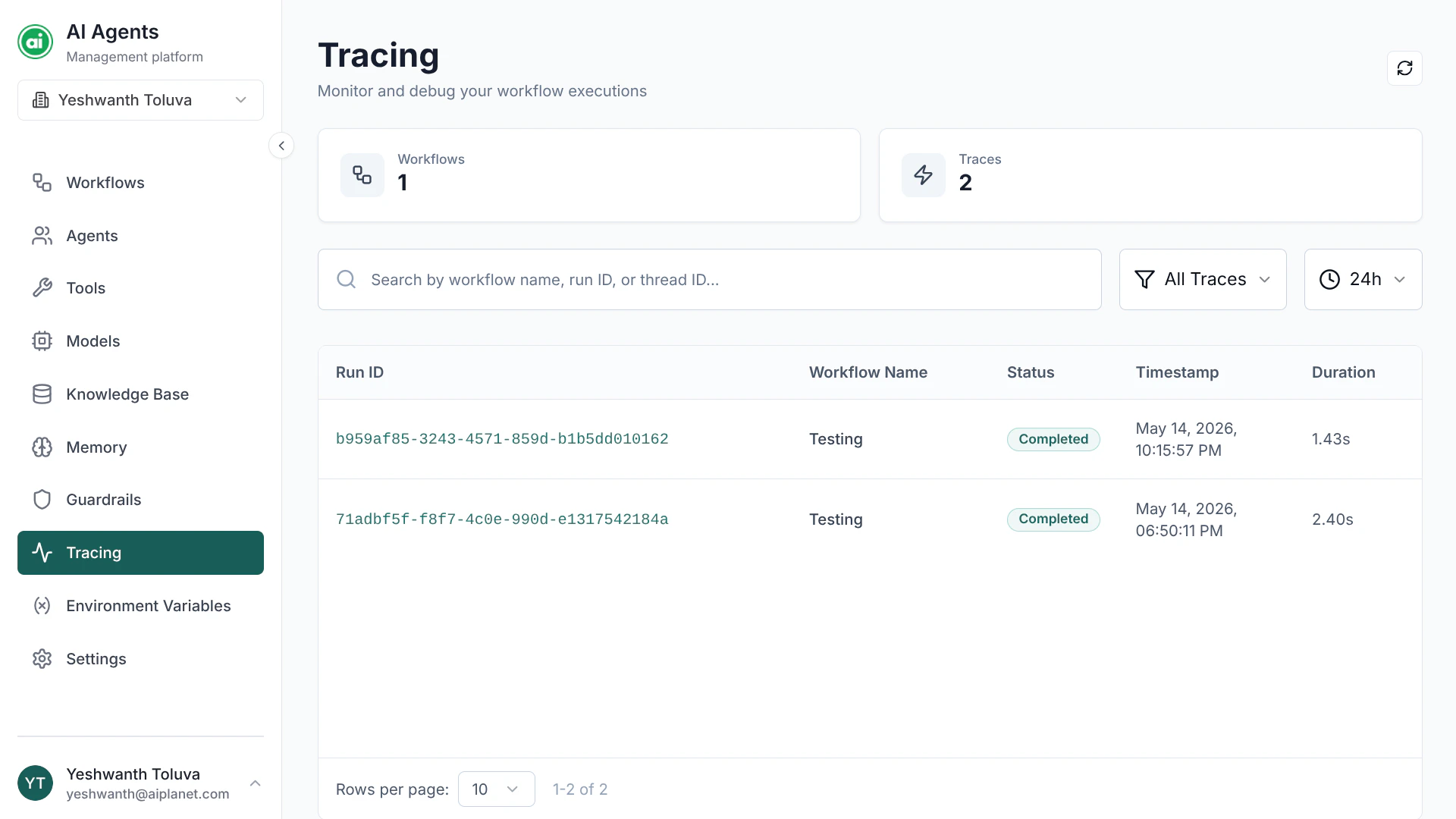
The Tracing page — summary counts at the top and a table of every run below.
The traces list
The Tracing page lists every run across your workflows. Two summary cards at the top show your total workflow and trace counts. For each run, the table shows:- The run identifier
- The workflow it belongs to
- Its status
- When it ran and how long it took
Finding a run
- Search by workflow name, run identifier, or thread identifier.
- Filter by status — Completed or Failed.
- Adjust the time range — from the last 24 hours up to the last year.
Inspecting a run
Open a run to see its full detail. The Input & output tab shows what the run received and what it returned: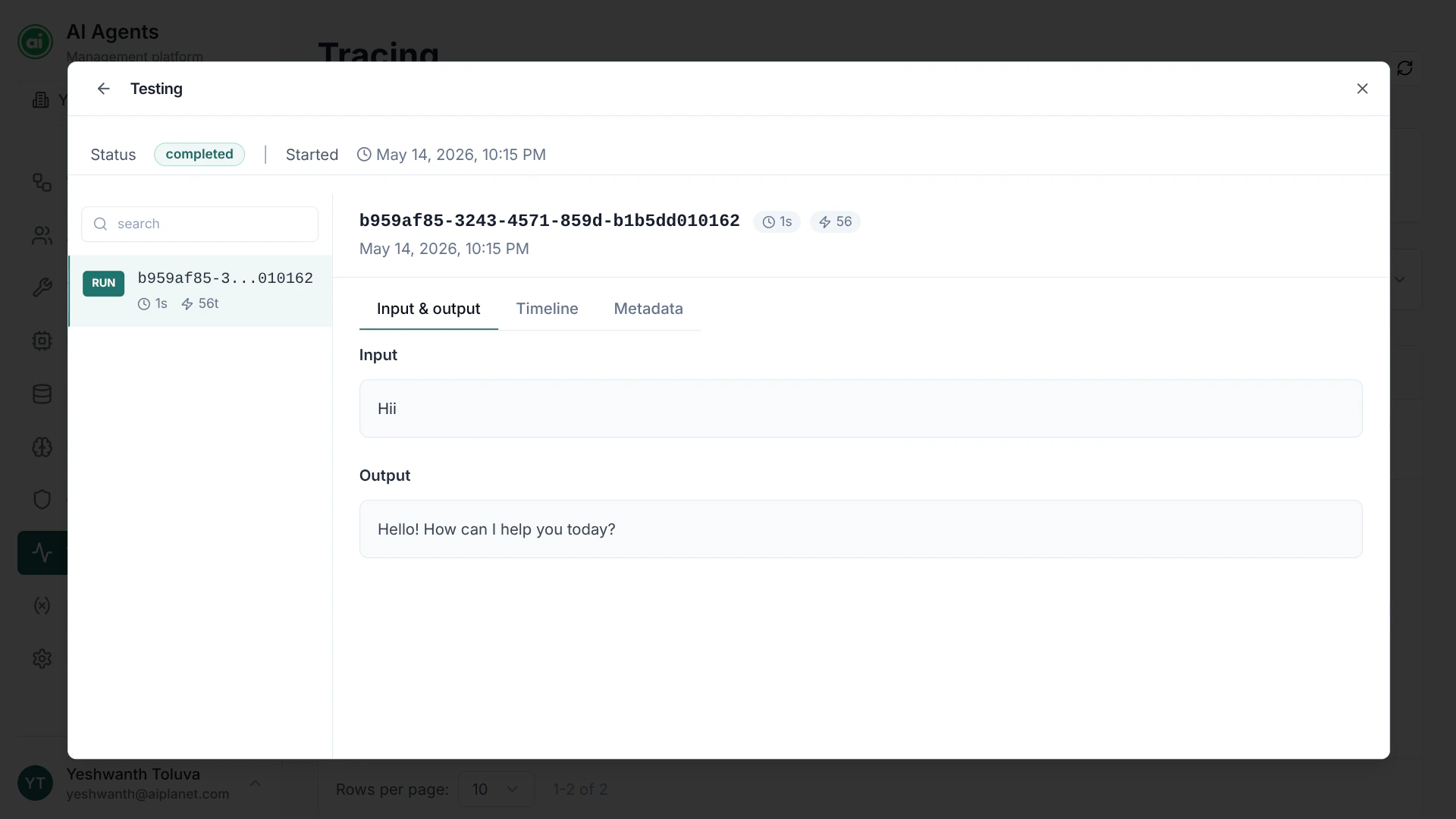
A run's Input & output — the exact input the run received and the output it produced.
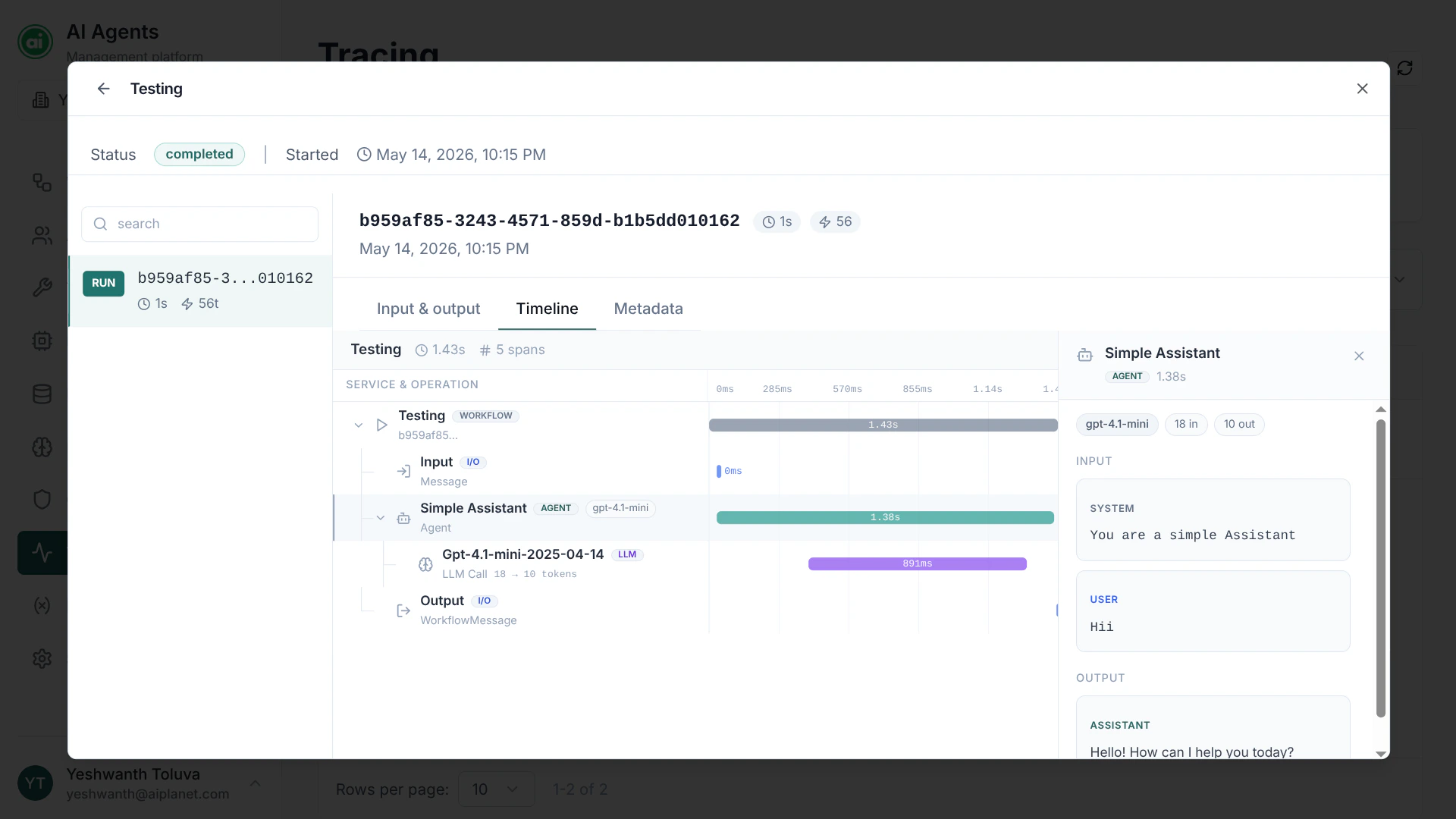
A run's Timeline — each node that executed, its timing, and the detail of the selected step.
- The inputs it received.
- The outputs it produced.
- A step-by-step timeline of every node that executed, with each node’s input, output, and timing.
- The error detail, if the run failed — including which node failed and why.
Why tracing matters
Tracing is your main debugging tool:- Failed runs — see exactly which node failed and the error.
- Unexpected output — follow the data through each node to find where it went wrong.
- Slow runs — see which node took the most time.
- Verifying behavior — confirm an agent used the right tool or searched the right knowledge base.
Next steps
Execution limits
Learn about concurrency and usage limits.