
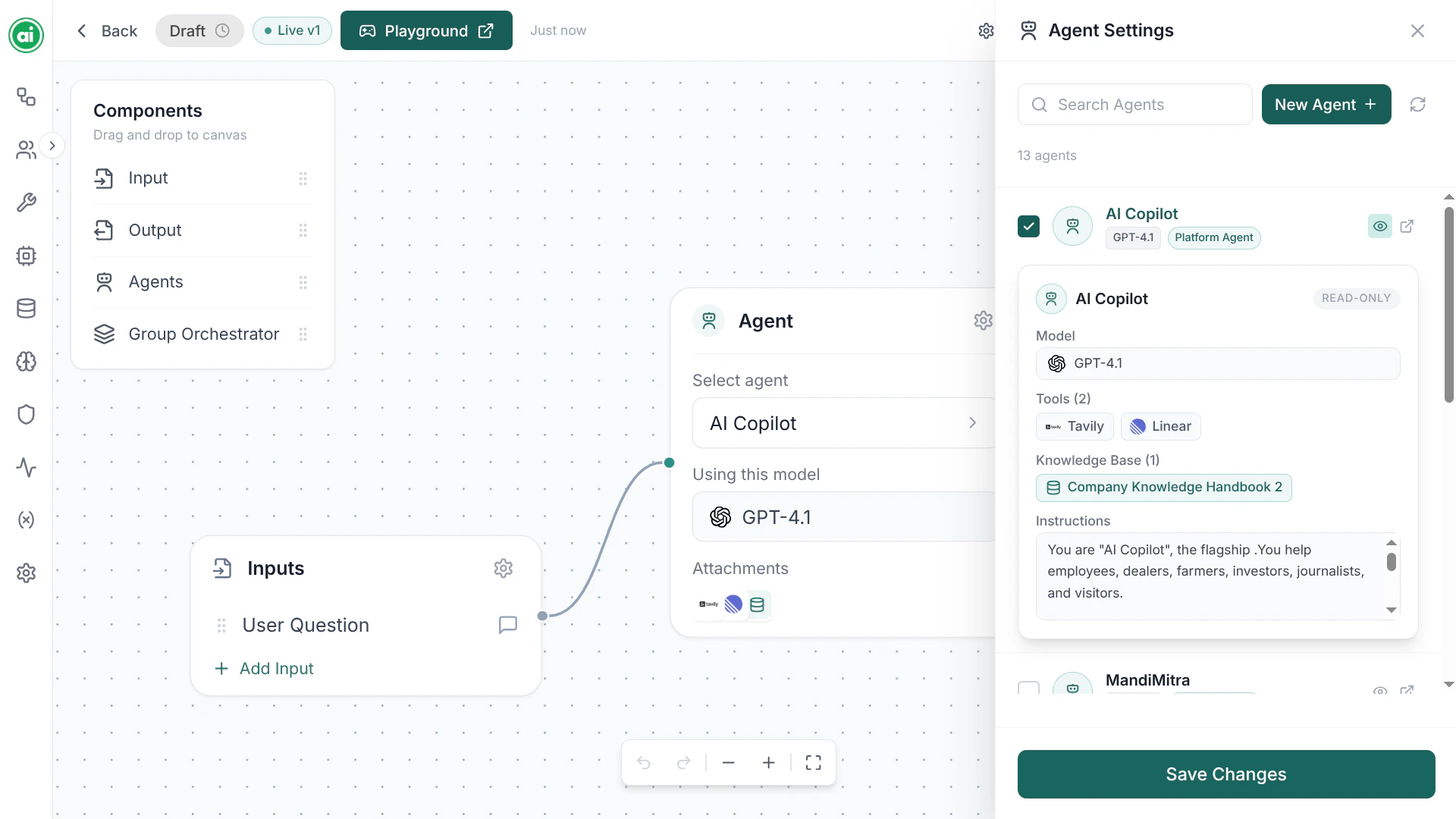
An Agent node selected, showing the list of agent configurations to choose from.
Choosing or creating an agent
When you select an Agent node, its panel shows a searchable list of the agent configurations available to your organization. Pick one to use it, or click New Agent to create one — that opens the agent configuration form. You can also manage agent configurations directly on the Agents page. Either way, the configuration form has the same fields, covered below.Name and description
Give the agent a clear name — something likeAnswer Agent or Research Agent helps you understand the workflow at a glance. The description is optional and for your own reference.
Model
Choose which AI model powers the agent from the Model dropdown. The list shows the models configured for your organization. If the model you want isn’t there, add it under Models.Instructions
The instructions field is the agent’s system prompt — it defines the agent’s role, behavior, and constraints. This is the single most important setting. Good instructions are specific:Tools
In the Tools section, select the tools the agent can use — sending messages, fetching data, and more. The agent decides when to use a tool based on its instructions and the task at hand. See Tools to set up the tools available here. Two related settings control tool behavior:- Tool choice — how the agent decides whether to call a tool (for example, letting the agent decide on its own, or requiring it to use one).
- Allow multiple tool calls — whether the agent can call more than one tool in a single step.
Knowledge Base
In the Knowledge Base section, select a knowledge base for the agent. When one is attached, the agent can search that content and ground its answers in your own information instead of relying only on the model’s general knowledge. An agent uses a single knowledge base. See Knowledge Bases to create one.What’s set elsewhere
Two things that affect an agent are not part of the agent configuration — they’re set once per workflow in the workflow’s settings:- Memory — whether the workflow retains context across messages. See Memory configurations.
- Guardrails — safety policies applied to the workflow. See Guardrails.
Saving
When you’ve configured the agent, save it. The configuration is then available to use in any workflow.Next steps
Test in the Playground
Try your agent with real inputs.
Deploy your workflow
Publish it for your team and the API.