
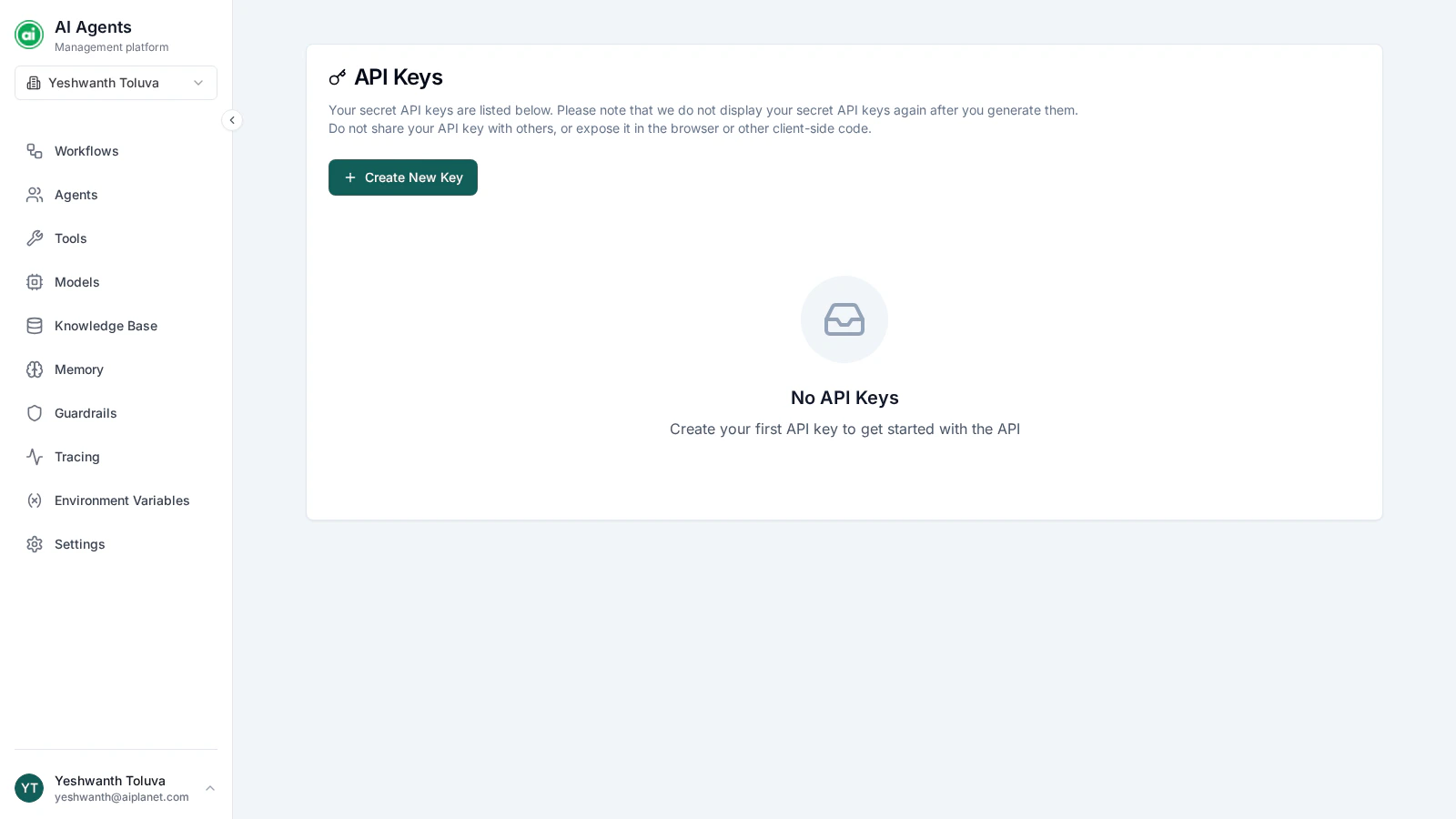
The API Keys page, listing keys with their masked values, created date, and usage.
Creating a key
Click Create New Key and provide:- Name — a clear label, such as
ProductionorStaging, so you can tell your keys apart. - Permissions — the scopes the key is allowed to use (see below).
Scopes
Scopes control what a key can do. Grant only the scopes an integration actually needs — for example, a key that only triggers workflows doesn’t need permission to edit them. Common scopes cover reading workflows, triggering executions, and reading results.Managing keys
The API Keys page lists every key with its name, a masked preview of its value, when it was created, when it was last used, and how many requests it has made. For each key you can:- Edit — change its name or permissions.
- Delete — revoke the key immediately. Any integration using it stops working.
Keeping keys safe
- Use separate keys for separate applications or environments — so you can revoke one without affecting the others.
- Revoke unused keys.
- If a key may be compromised, delete it right away and create a replacement.
Next steps
Calling workflows via API
Use your key to trigger workflows from your own applications.