
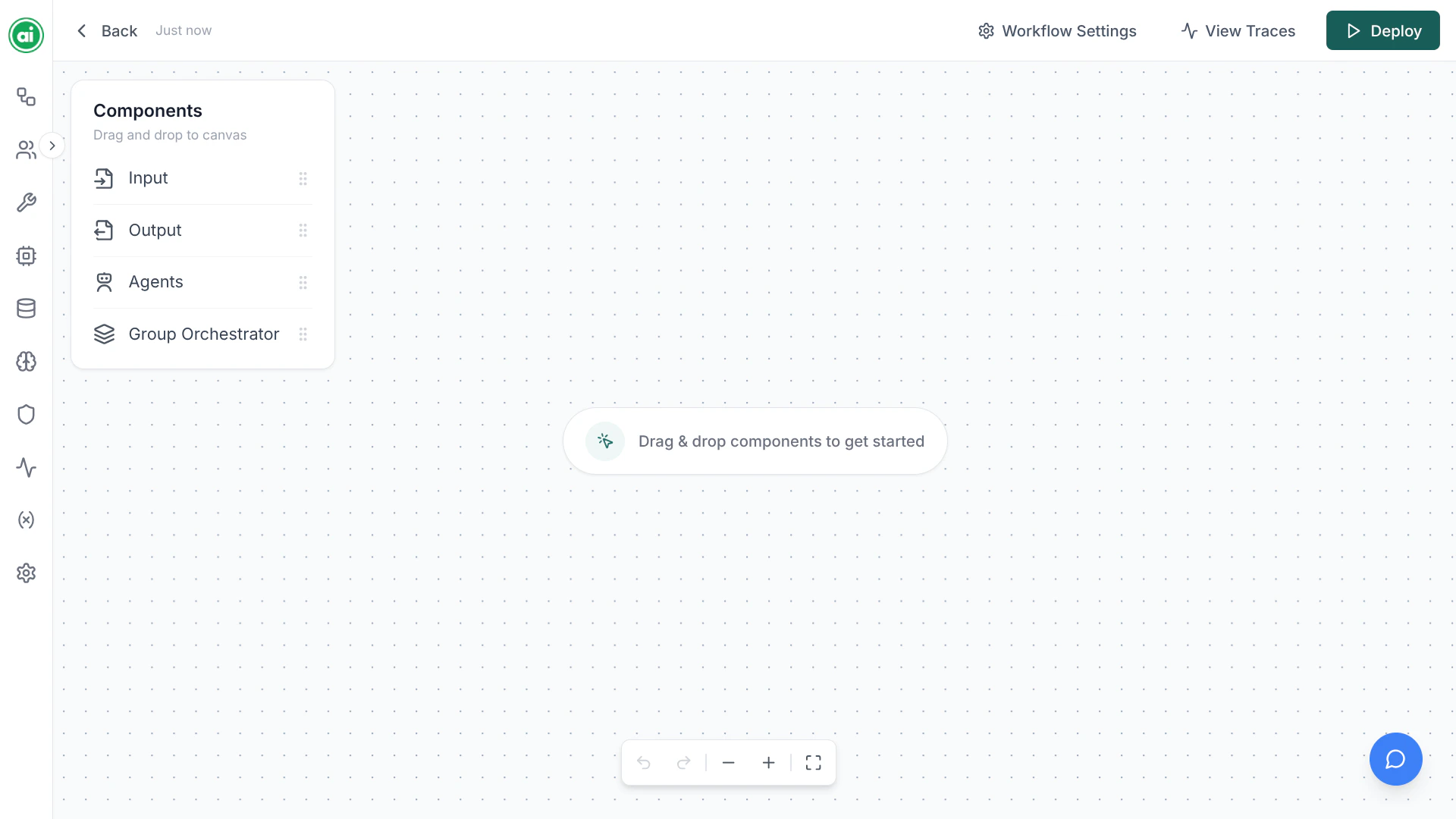
The workflow builder — the component panel on the left, the canvas in the center, and the header across the top.
The layout
The builder has four main areas:Component panel
On the left. Lists the node types you can add — Input, Output, Agent, and Group Orchestrator. Drag a node from here onto the canvas.
Canvas
The center workspace. Place, arrange, and connect your nodes here. Pan and zoom freely.
Configuration panel
Opens on the right when you select a node. This is where you set up what each node does.
Header
Across the top. Shows the workflow name, the save status, and the deploy controls.
Working on the canvas
- Add a node — drag it from the component panel onto the canvas.
- Select a node — click it. The configuration panel opens on the right.
- Move a node — drag it to reposition.
- Connect nodes — drag from one node’s handle to another’s. See Connecting nodes.
- Zoom and pan — use the on-canvas controls or scroll and drag to navigate large workflows.
Saving your work
The header shows a save status indicator. As you make changes, it reflects whether your work is saved or has unsaved changes. Save before testing in the Playground or deploying.Settings
A settings panel, opened from the header, lets you configure workflow-wide options — including memory and which guardrails apply to the workflow.Next steps
Node types
Learn what each node does and when to use it.
Connecting nodes
Understand how information flows between nodes.