> ## Documentation Index
> Fetch the complete documentation index at: https://docs.platform.aiplanet.com/llms.txt
> Use this file to discover all available pages before exploring further.
# Knowledge Bases
> Upload your own documents so agents can answer questions from them.
A Knowledge Base is a collection of your own documents that the platform indexes so agents can search it. Attach one to an agent and it can ground its answers in your information instead of relying only on the model's general knowledge.
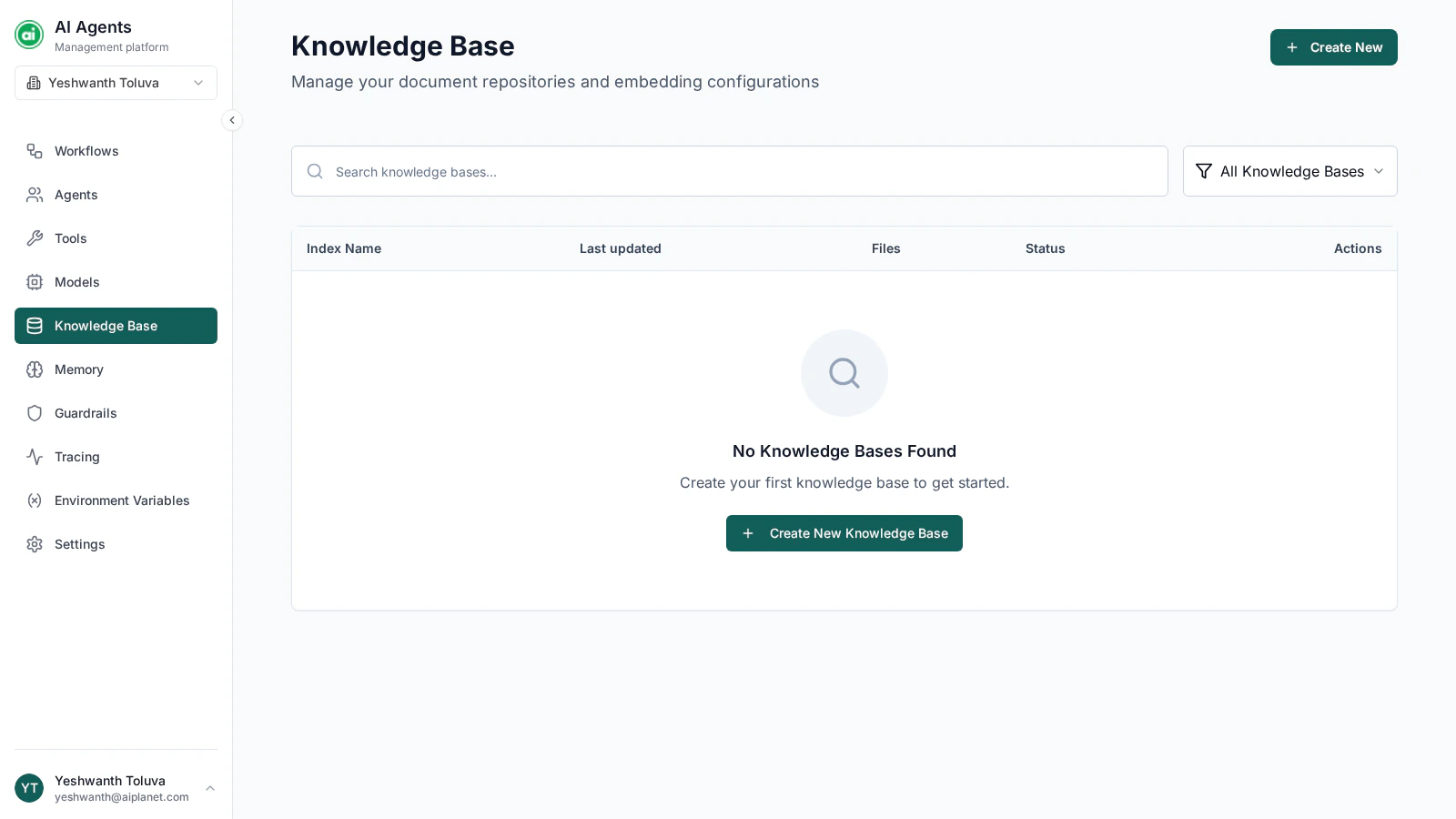 ## Creating a Knowledge Base
Click **Create New** and provide:
* **Name** — a clear label, such as `Product Documentation` or `Support Articles`.
* **Description** — optional, for your own reference.
* **Files** — upload the documents to include.
When you save, the platform begins **indexing** — processing your documents so they can be searched. Larger files take longer.
## Supported files
A Knowledge Base is built from uploaded files. Supported formats are **PDF, TXT, Markdown, DOC, and DOCX**. You can upload up to **10 files** per Knowledge Base, with a maximum of **100 MB** per file.
## Indexing status
Each Knowledge Base shows a status so you know whether it's ready:
| Status | Meaning |
| ------------ | ------------------------------------ |
| **Pending** | Queued, indexing hasn't started yet. |
| **Indexing** | Content is being processed. |
| **Indexed** | Ready to use. |
| **Partial** | Some files indexed, some didn't. |
| **Failed** | Indexing ran into an error. |
An agent can only search content that has finished indexing. Wait for the **Indexed** status before relying on a Knowledge Base in a deployed workflow.
## Editing a Knowledge Base
Open a Knowledge Base to update its name and description, upload more files, or remove and download existing ones. Newly added files are indexed when you save, and you can see the status of each file individually.
## Advanced configuration
By default, a Knowledge Base uses the platform's managed setup — you don't need to configure anything beyond uploading files. Advanced users can optionally bring their own vector database, with custom embedding and retrieval settings, when creating a Knowledge Base.
## Deleting a Knowledge Base
Deleting a Knowledge Base permanently removes it and all its indexed content. Agents that referenced it will no longer have access to that content.
Deletion can't be undone. If a deployed workflow uses the Knowledge Base, its agents lose that content on the next run.
## Using a Knowledge Base
Select a Knowledge Base in the **Knowledge Base** section of an agent's configuration. See [Configuring agents](/building-workflows/configuring-agents#knowledge-base).
In the agent's instructions, tell it to answer *only* from the connected knowledge base and to say when it doesn't know. This keeps answers grounded in your content.
## Next steps
Let workflows remember context across a conversation.
## Creating a Knowledge Base
Click **Create New** and provide:
* **Name** — a clear label, such as `Product Documentation` or `Support Articles`.
* **Description** — optional, for your own reference.
* **Files** — upload the documents to include.
When you save, the platform begins **indexing** — processing your documents so they can be searched. Larger files take longer.
## Supported files
A Knowledge Base is built from uploaded files. Supported formats are **PDF, TXT, Markdown, DOC, and DOCX**. You can upload up to **10 files** per Knowledge Base, with a maximum of **100 MB** per file.
## Indexing status
Each Knowledge Base shows a status so you know whether it's ready:
| Status | Meaning |
| ------------ | ------------------------------------ |
| **Pending** | Queued, indexing hasn't started yet. |
| **Indexing** | Content is being processed. |
| **Indexed** | Ready to use. |
| **Partial** | Some files indexed, some didn't. |
| **Failed** | Indexing ran into an error. |
An agent can only search content that has finished indexing. Wait for the **Indexed** status before relying on a Knowledge Base in a deployed workflow.
## Editing a Knowledge Base
Open a Knowledge Base to update its name and description, upload more files, or remove and download existing ones. Newly added files are indexed when you save, and you can see the status of each file individually.
## Advanced configuration
By default, a Knowledge Base uses the platform's managed setup — you don't need to configure anything beyond uploading files. Advanced users can optionally bring their own vector database, with custom embedding and retrieval settings, when creating a Knowledge Base.
## Deleting a Knowledge Base
Deleting a Knowledge Base permanently removes it and all its indexed content. Agents that referenced it will no longer have access to that content.
Deletion can't be undone. If a deployed workflow uses the Knowledge Base, its agents lose that content on the next run.
## Using a Knowledge Base
Select a Knowledge Base in the **Knowledge Base** section of an agent's configuration. See [Configuring agents](/building-workflows/configuring-agents#knowledge-base).
In the agent's instructions, tell it to answer *only* from the connected knowledge base and to say when it doesn't know. This keeps answers grounded in your content.
## Next steps
Let workflows remember context across a conversation.