> ## Documentation Index
> Fetch the complete documentation index at: https://docs.platform.aiplanet.com/llms.txt
> Use this file to discover all available pages before exploring further.
# Guardrails
> Add safety rules that constrain what your agents accept and produce.
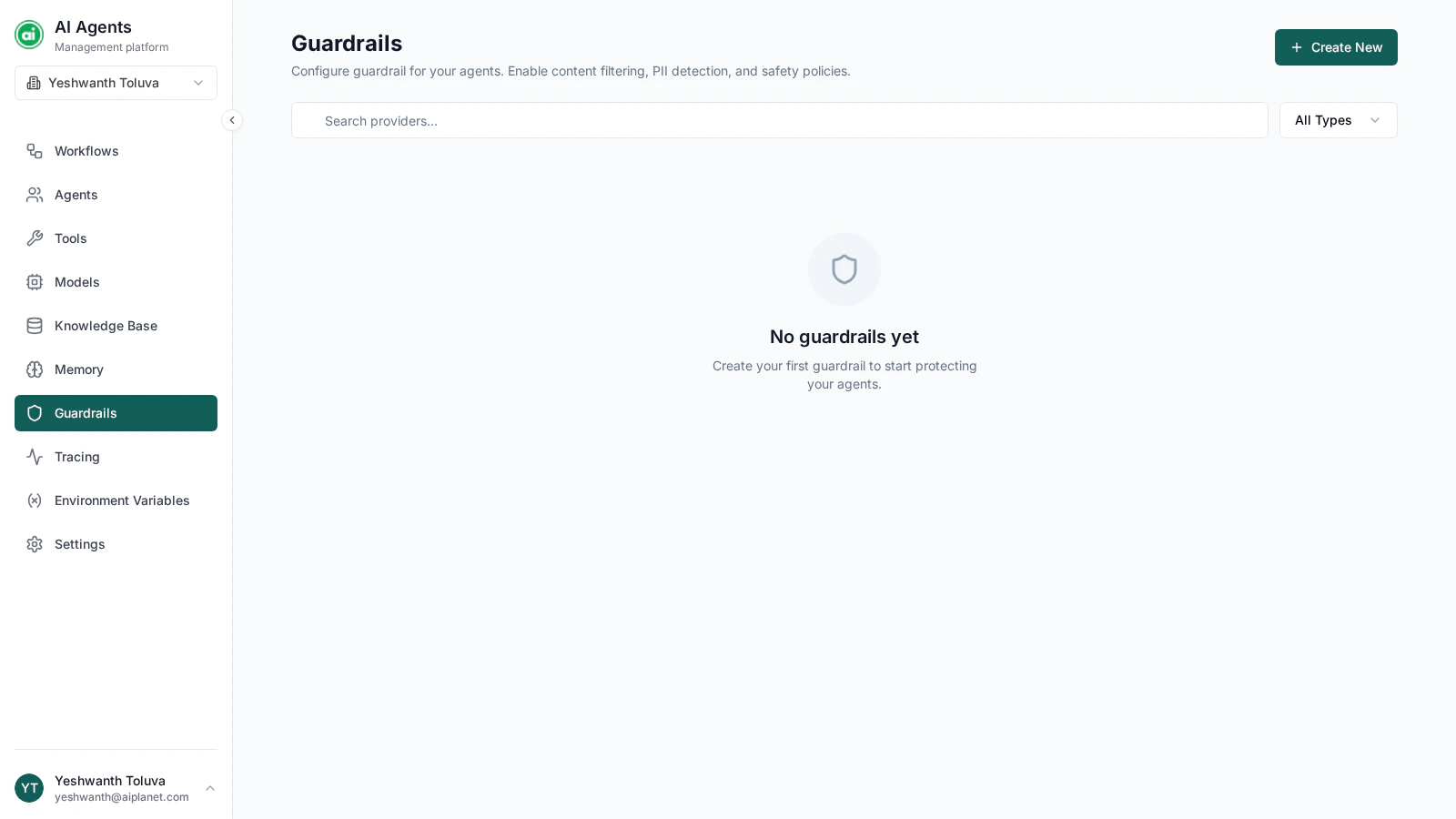
Guardrails are safety policies applied to a workflow — checking what goes in and what comes out. Use them to protect sensitive information and to keep workflows behaving the way you intend.
 ## Guardrail types
The platform supports two guardrail types:
Detects personal information — such as email addresses, phone numbers, and other sensitive identifiers — and masks it so it isn't exposed.
Detects and blocks attempts to manipulate a workflow into ignoring its instructions.
## Creating a guardrail
Click **Create New** and configure:
* **Name** — a clear label, such as `Mask Personal Info`.
* **Type** — PII detection or prompt injection protection.
* **Settings** — type-specific options:
* **PII detection** — choose which entity types to detect (emails, phone numbers, credit cards, IDs, and more) and the scope it applies to (model calls, tools, or both).
* **Prompt injection protection** — set the confidence threshold for what counts as an injection attempt.
## Testing a guardrail
Before relying on a guardrail, test it. Open the guardrail's test panel and enter sample text — for instance, text containing an email address — and confirm the guardrail catches and handles it as expected.
Test with realistic examples from your actual use case. A guardrail that's too strict can block legitimate input; one that's too loose can let things through.
## Applying guardrails
Guardrails are applied at the **workflow** level. In the workflow's settings panel, choose which guardrails the workflow uses — you can apply one PII detection guardrail and one prompt injection guardrail. See [The workflow builder](/building-workflows/builder-overview#settings).
## Managing guardrails
From each guardrail card you can **edit** its settings, **test** it, or **delete** it. If you delete a guardrail that's in use, the workflows using it will no longer have that protection.
## Next steps
See how runs work once your workflow is built and protected.
## Guardrail types
The platform supports two guardrail types:
Detects personal information — such as email addresses, phone numbers, and other sensitive identifiers — and masks it so it isn't exposed.
Detects and blocks attempts to manipulate a workflow into ignoring its instructions.
## Creating a guardrail
Click **Create New** and configure:
* **Name** — a clear label, such as `Mask Personal Info`.
* **Type** — PII detection or prompt injection protection.
* **Settings** — type-specific options:
* **PII detection** — choose which entity types to detect (emails, phone numbers, credit cards, IDs, and more) and the scope it applies to (model calls, tools, or both).
* **Prompt injection protection** — set the confidence threshold for what counts as an injection attempt.
## Testing a guardrail
Before relying on a guardrail, test it. Open the guardrail's test panel and enter sample text — for instance, text containing an email address — and confirm the guardrail catches and handles it as expected.
Test with realistic examples from your actual use case. A guardrail that's too strict can block legitimate input; one that's too loose can let things through.
## Applying guardrails
Guardrails are applied at the **workflow** level. In the workflow's settings panel, choose which guardrails the workflow uses — you can apply one PII detection guardrail and one prompt injection guardrail. See [The workflow builder](/building-workflows/builder-overview#settings).
## Managing guardrails
From each guardrail card you can **edit** its settings, **test** it, or **delete** it. If you delete a guardrail that's in use, the workflows using it will no longer have that protection.
## Next steps
See how runs work once your workflow is built and protected.