> ## Documentation Index
> Fetch the complete documentation index at: https://docs.platform.aiplanet.com/llms.txt
> Use this file to discover all available pages before exploring further.
# Testing in the Playground
> Run your deployed workflow interactively and iterate.
The Playground is where you test a workflow with real inputs and see exactly how it behaves. It's the fastest way to iterate.
 ## Opening the Playground
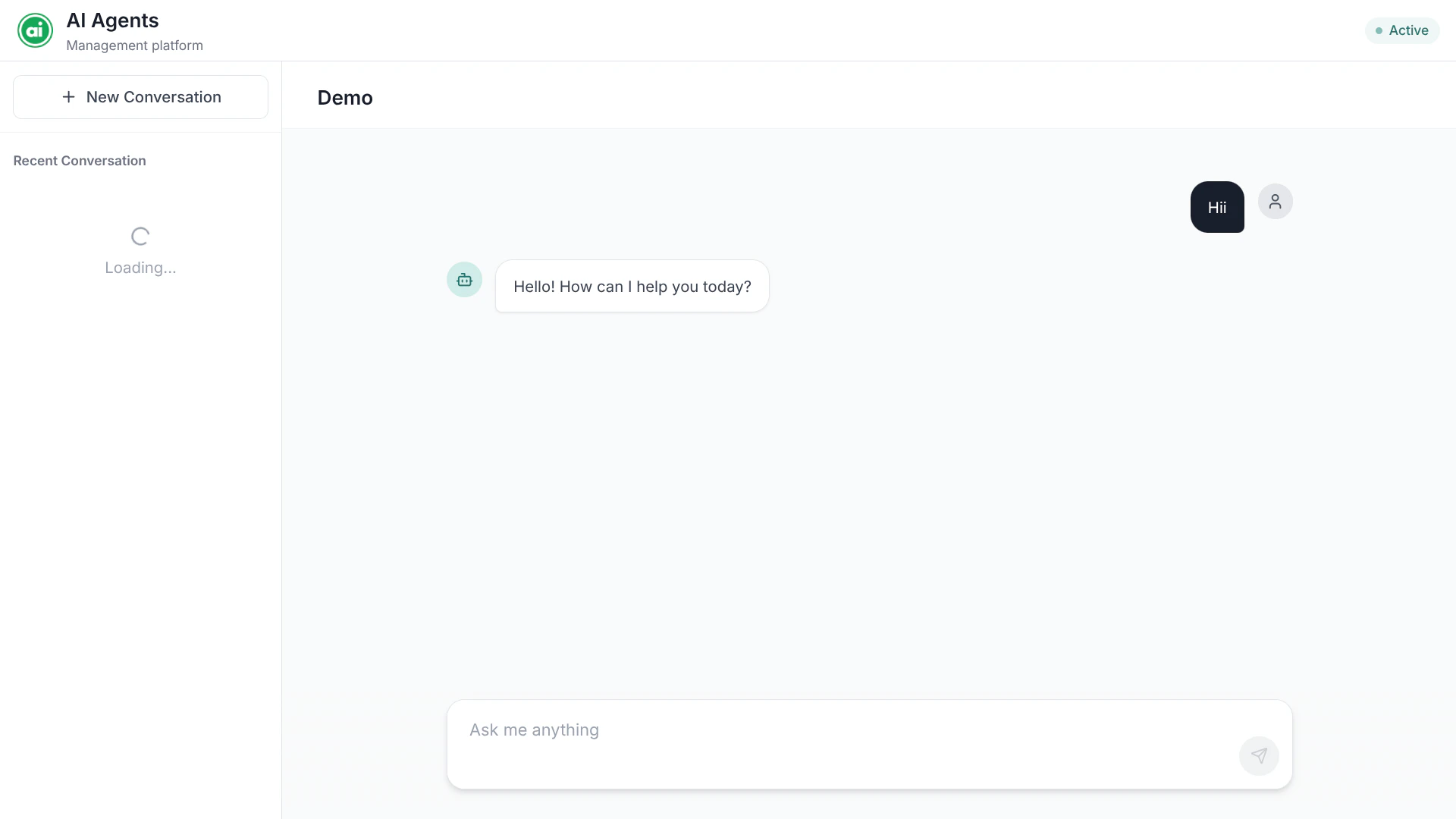
The Playground runs your workflow's **active deployment** — so you need to [deploy the workflow](/building-workflows/deploying) before you can test it. Once it's deployed, open the Playground from the builder. You'll see the workflow's name and status in the header.
## Threads
The left sidebar lists your **threads** — each thread is a separate conversation session. Use threads to keep different test scenarios apart.
* **New conversation** — start a fresh session with no prior context.
* **Rename** — give a thread a meaningful name.
* **Pin** — keep an important thread at the top.
## Running your workflow
How you provide input depends on your workflow:
* **Chat-style workflows** — type a message in the input field at the bottom and send it. Use Enter to send, Shift+Enter for a new line.
* **Form-style workflows** — fill in the input parameters in the main area and submit.
The agent's response streams back in real time, so you see output as it's generated. A typing indicator shows while the agent is working.
## Iterating
The Playground is built for fast iteration:
Send an input and review the response.
Go back to the builder, tweak the agent's configuration, save, and deploy again.
Return to the Playground and try the same input. Compare the results.
Start a new thread when you change the workflow significantly — it gives you a clean comparison without leftover context from earlier runs.
## Reviewing what happened
Every run in the Playground is also recorded in [Tracing](/running-monitoring/tracing), where you can inspect each node's input and output step by step. This is invaluable when a workflow doesn't behave the way you expect.
## Next steps
Once it works the way you want, publish it.
## Opening the Playground
The Playground runs your workflow's **active deployment** — so you need to [deploy the workflow](/building-workflows/deploying) before you can test it. Once it's deployed, open the Playground from the builder. You'll see the workflow's name and status in the header.
## Threads
The left sidebar lists your **threads** — each thread is a separate conversation session. Use threads to keep different test scenarios apart.
* **New conversation** — start a fresh session with no prior context.
* **Rename** — give a thread a meaningful name.
* **Pin** — keep an important thread at the top.
## Running your workflow
How you provide input depends on your workflow:
* **Chat-style workflows** — type a message in the input field at the bottom and send it. Use Enter to send, Shift+Enter for a new line.
* **Form-style workflows** — fill in the input parameters in the main area and submit.
The agent's response streams back in real time, so you see output as it's generated. A typing indicator shows while the agent is working.
## Iterating
The Playground is built for fast iteration:
Send an input and review the response.
Go back to the builder, tweak the agent's configuration, save, and deploy again.
Return to the Playground and try the same input. Compare the results.
Start a new thread when you change the workflow significantly — it gives you a clean comparison without leftover context from earlier runs.
## Reviewing what happened
Every run in the Playground is also recorded in [Tracing](/running-monitoring/tracing), where you can inspect each node's input and output step by step. This is invaluable when a workflow doesn't behave the way you expect.
## Next steps
Once it works the way you want, publish it.