> ## Documentation Index
> Fetch the complete documentation index at: https://docs.platform.aiplanet.com/llms.txt
> Use this file to discover all available pages before exploring further.
# Tools
> Give your agents external capabilities — from connected apps to custom integrations.
Tools give your agents the ability to take action beyond generating text — sending messages, fetching data, updating records in other services. The Tools page is where you set them up.
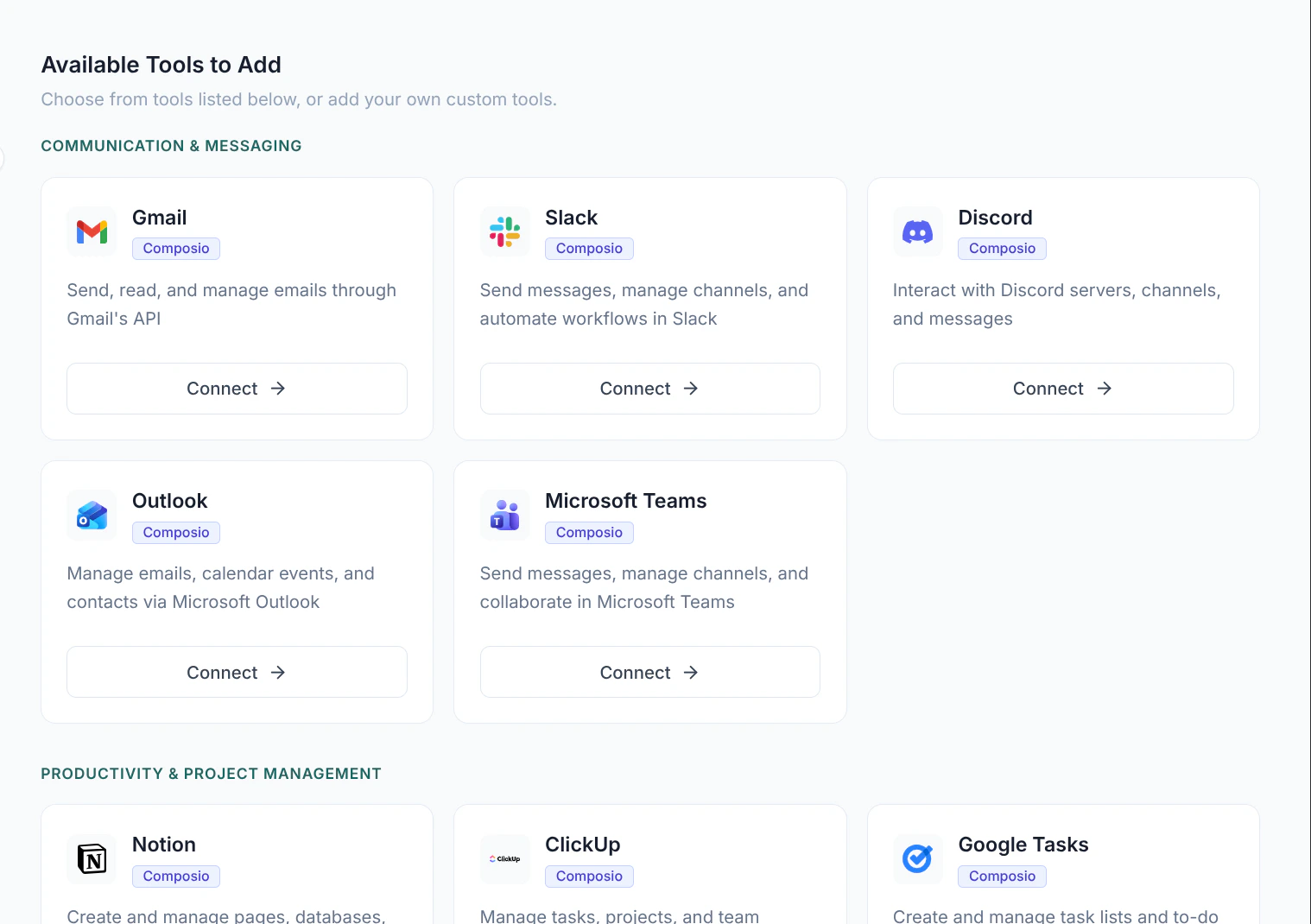 ## The Tools page
The Tools page has two parts:
The tools you've already connected or configured. These are ready to attach to agents.
A catalog of ready-made integrations for popular apps and services, grouped by category. When available, you can connect any of these in a few clicks.
## Connecting an integration
When the integrations catalog is enabled for your organization, find the app you want under **Available Tools to Add** and click **Connect**. You'll be guided through authorizing your account for that service — see [Tool connections](/agents-models-tools/tool-connections) for the full flow.
Once connected, the integration appears under **My Tools** and can be attached to any agent.
## Adding a custom tool
To connect a service that isn't in the catalog, click **Add New Tool** in the page header. You can create two kinds of custom tool:
* **API tool** — calls an HTTP endpoint. You provide a name and description, the URL and HTTP method, the authentication type (none, bearer token, API key, or basic auth), any headers and path or query parameters, and — for methods that send a body — a JSON request body.
* **MCP tool** — connects to a Model Context Protocol server. You provide a name and description, the transport type, the server URL, and any headers.
## Managing tools
From each tool card in **My Tools** you can:
* **Edit** — update its configuration.
* **Test** — try the tool with sample input to confirm it works.
* **Disconnect** — for connected integrations, remove the link to your account.
* **Delete** — remove the tool entirely.
Built-in **default tools** show **Fork & Edit** instead of Edit — creating your own editable copy of the tool rather than changing the original.
## Using tools in workflows
Tools don't act on their own — you attach them to an **Agent**. The agent decides when to call a tool based on its instructions and the task. See [Configuring agents](/building-workflows/configuring-agents#tools).
## Next steps
Walk through connecting an external account.
## The Tools page
The Tools page has two parts:
The tools you've already connected or configured. These are ready to attach to agents.
A catalog of ready-made integrations for popular apps and services, grouped by category. When available, you can connect any of these in a few clicks.
## Connecting an integration
When the integrations catalog is enabled for your organization, find the app you want under **Available Tools to Add** and click **Connect**. You'll be guided through authorizing your account for that service — see [Tool connections](/agents-models-tools/tool-connections) for the full flow.
Once connected, the integration appears under **My Tools** and can be attached to any agent.
## Adding a custom tool
To connect a service that isn't in the catalog, click **Add New Tool** in the page header. You can create two kinds of custom tool:
* **API tool** — calls an HTTP endpoint. You provide a name and description, the URL and HTTP method, the authentication type (none, bearer token, API key, or basic auth), any headers and path or query parameters, and — for methods that send a body — a JSON request body.
* **MCP tool** — connects to a Model Context Protocol server. You provide a name and description, the transport type, the server URL, and any headers.
## Managing tools
From each tool card in **My Tools** you can:
* **Edit** — update its configuration.
* **Test** — try the tool with sample input to confirm it works.
* **Disconnect** — for connected integrations, remove the link to your account.
* **Delete** — remove the tool entirely.
Built-in **default tools** show **Fork & Edit** instead of Edit — creating your own editable copy of the tool rather than changing the original.
## Using tools in workflows
Tools don't act on their own — you attach them to an **Agent**. The agent decides when to call a tool based on its instructions and the task. See [Configuring agents](/building-workflows/configuring-agents#tools).
## Next steps
Walk through connecting an external account.