> ## Documentation Index
> Fetch the complete documentation index at: https://docs.platform.aiplanet.com/llms.txt
> Use this file to discover all available pages before exploring further.
# Tool Connections
> Connect external accounts so your agents can act on your behalf.
Many tools — like email, messaging, or CRM integrations — need access to one of your accounts on that service. A **tool connection** is that authorized link. This page walks through connecting one.
## What a connection is
When you connect a tool, you authorize the platform to act on your behalf in that external service — for example, to send messages from your account or read data you have access to. The authorization is stored securely, and you can revoke it at any time.
## Connecting an account
On the [Tools](/agents-models-tools/tools) page, locate the integration under **Available Tools to Add** and click **Connect**.
You're taken to the external service's own sign-in page. Log in with the account you want to connect.
The service shows what access is being requested. Review it and approve.
You're brought back automatically. The tool now appears under **My Tools** with a connected status.
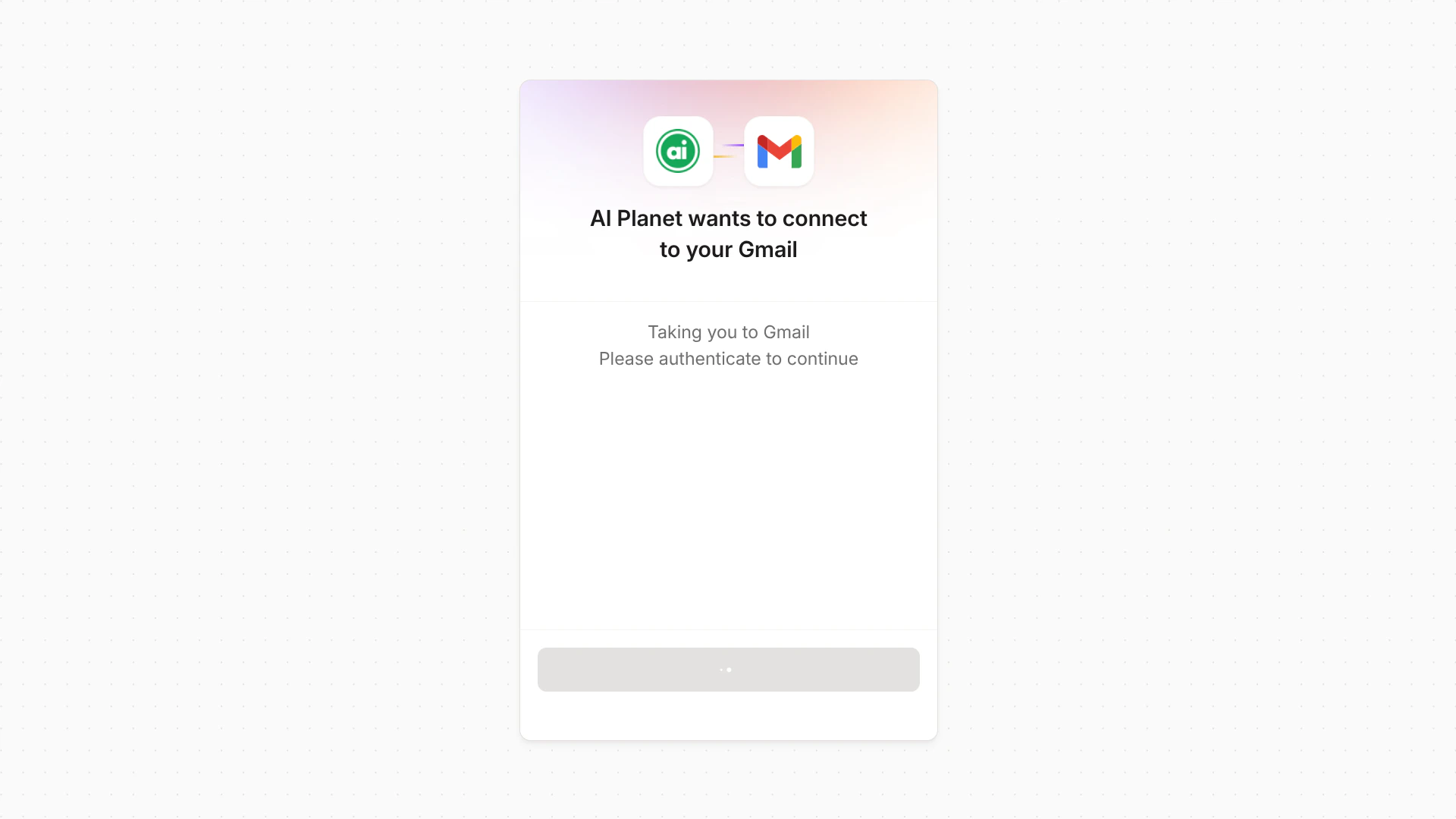 You sign in on the external service's own page — the platform never sees your password for that service.
## Using a connected tool
Once connected, attach the tool to an agent like any other. The agent uses your connection when it calls that tool during a run. See [Configuring agents](/building-workflows/configuring-agents#tools).
## Managing connections
From the tool's card under **My Tools**, you can **Disconnect** — this revokes the link to your account, and the tool stops working.
If a connection expires or stops working, connect the integration again from **Available Tools to Add** to restore access.
Disconnecting a tool that's attached to a deployed workflow will cause that workflow's runs to fail when they try to use it. Check where a tool is used before disconnecting.
## Next steps
Give your agents access to your own content.
You sign in on the external service's own page — the platform never sees your password for that service.
## Using a connected tool
Once connected, attach the tool to an agent like any other. The agent uses your connection when it calls that tool during a run. See [Configuring agents](/building-workflows/configuring-agents#tools).
## Managing connections
From the tool's card under **My Tools**, you can **Disconnect** — this revokes the link to your account, and the tool stops working.
If a connection expires or stops working, connect the integration again from **Available Tools to Add** to restore access.
Disconnecting a tool that's attached to a deployed workflow will cause that workflow's runs to fail when they try to use it. Check where a tool is used before disconnecting.
## Next steps
Give your agents access to your own content.